Lessons · 5 min
Join your lesson and use the classroom
Join from your dashboard, check your camera and microphone, then use chat, notes, the whiteboard and captions. Here's how to leave.
Before you start
- Use a computer with Chrome, Edge or Safari, or a phone browser (not a mail or chat app).
- Find a quiet place. Headphones help.
- Audio and video are never recorded.
Step by step
- Step 1:
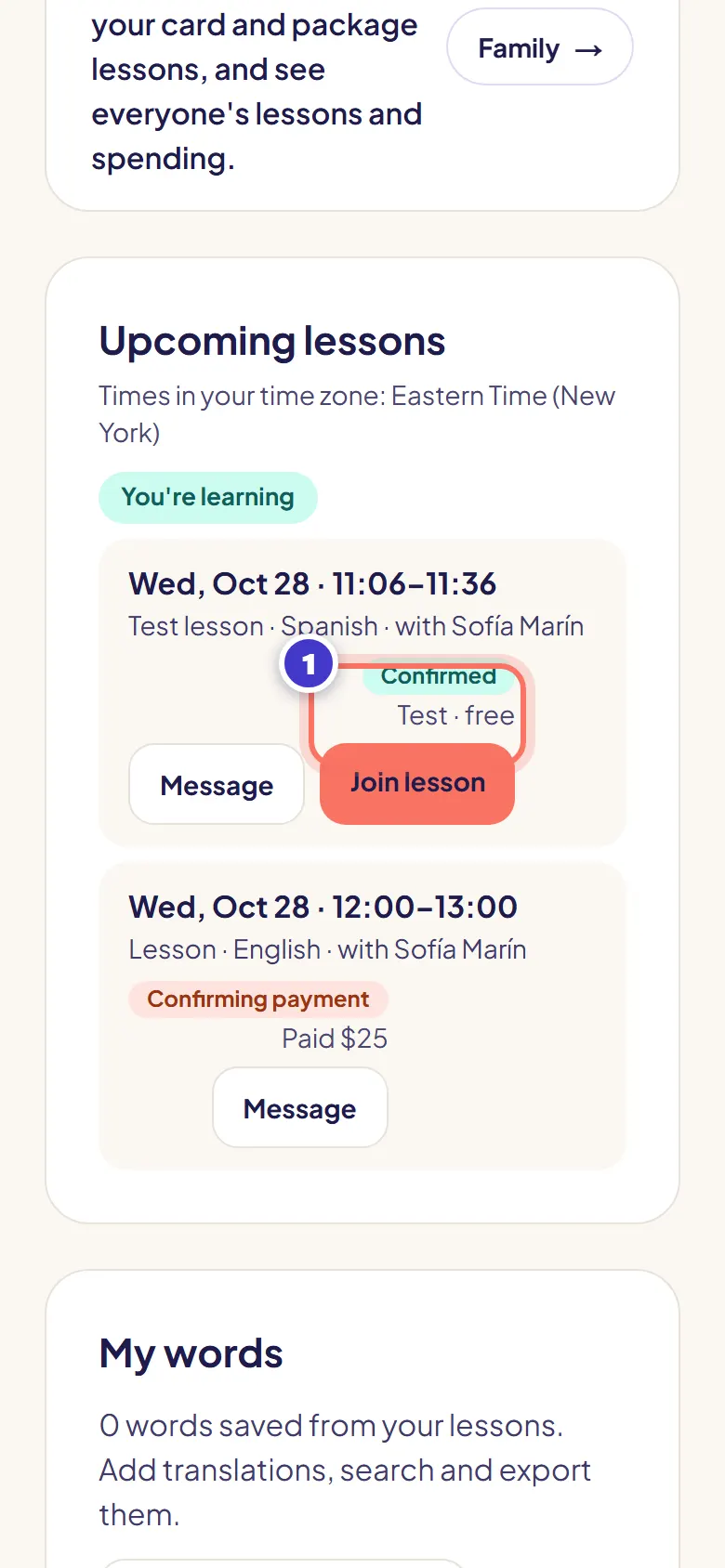
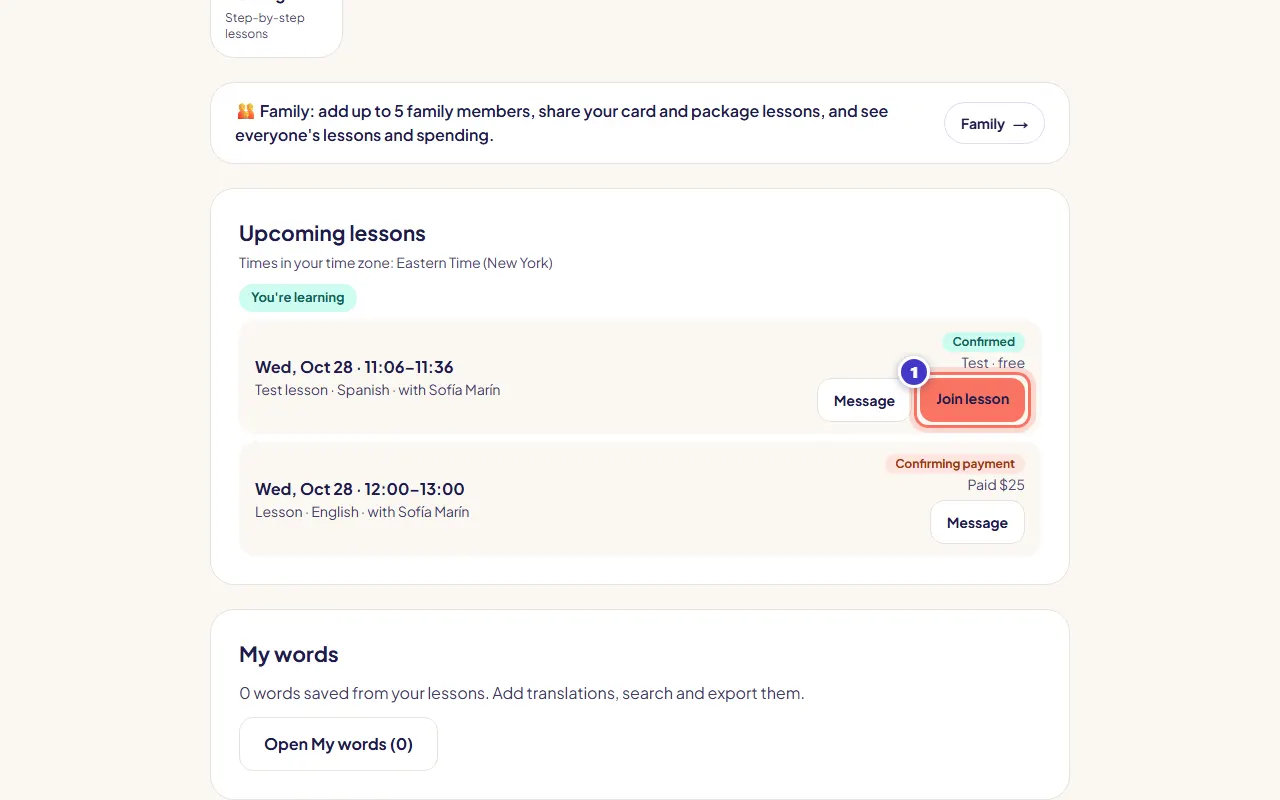
Press Join lesson on your dashboard, or in your reminder email. The button opens 10 minutes before the start.
- Step 2:
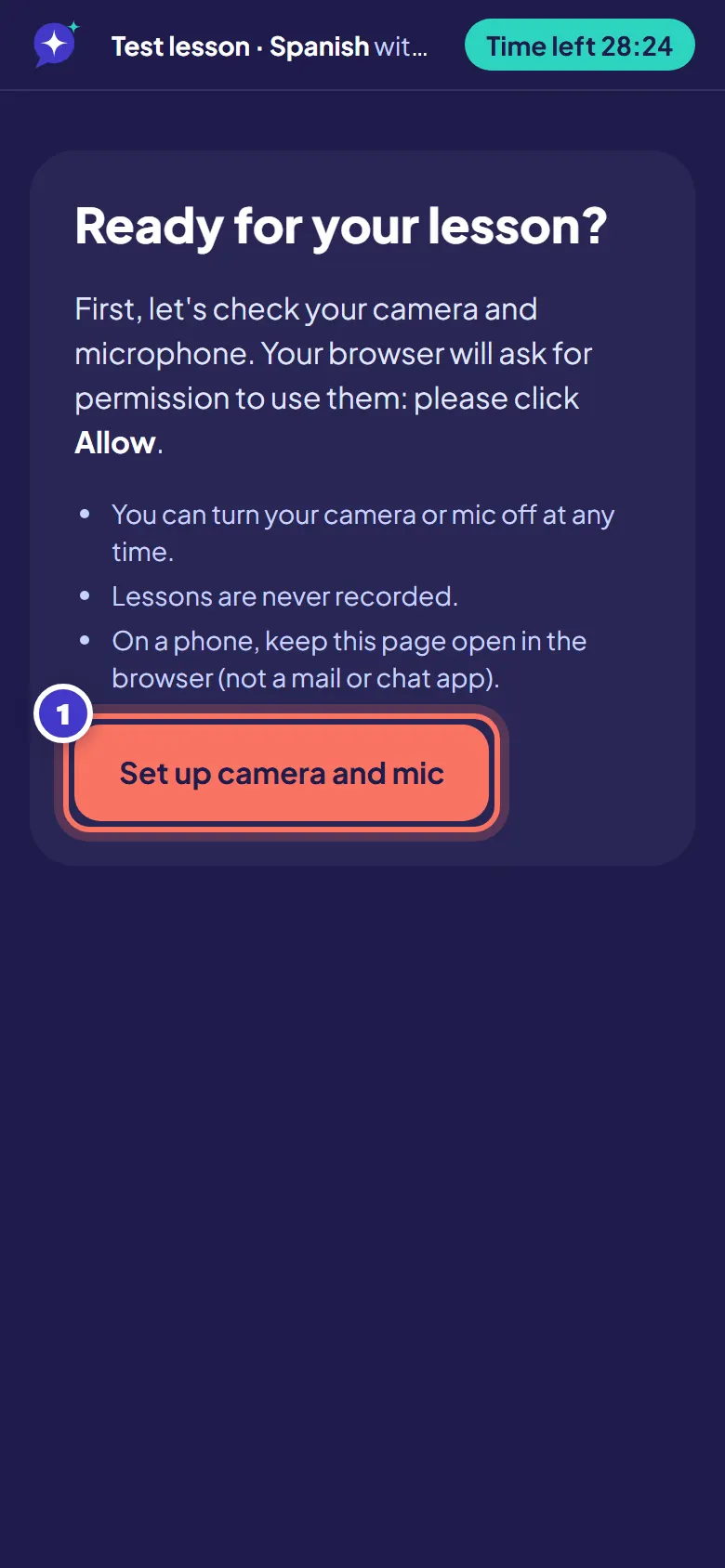
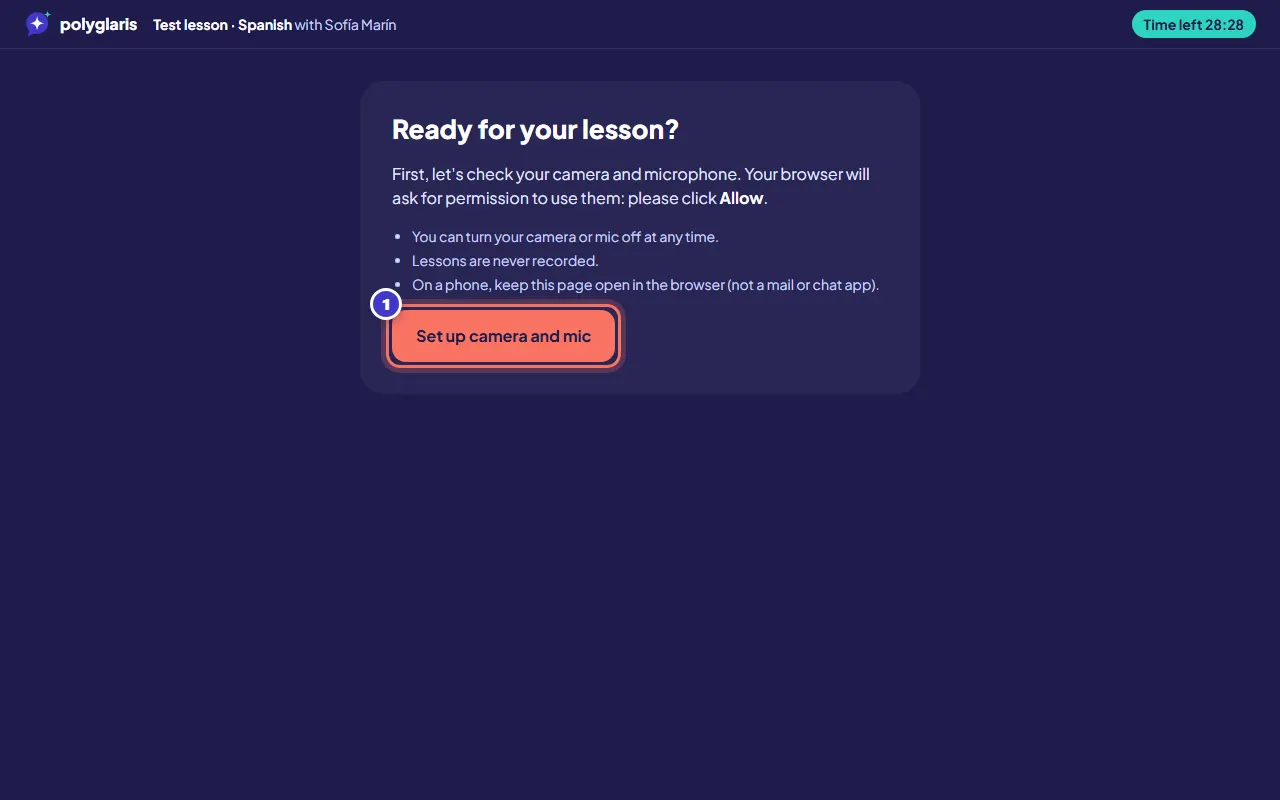
Press Set up camera and mic. When your browser asks, press Allow.
- Step 3:
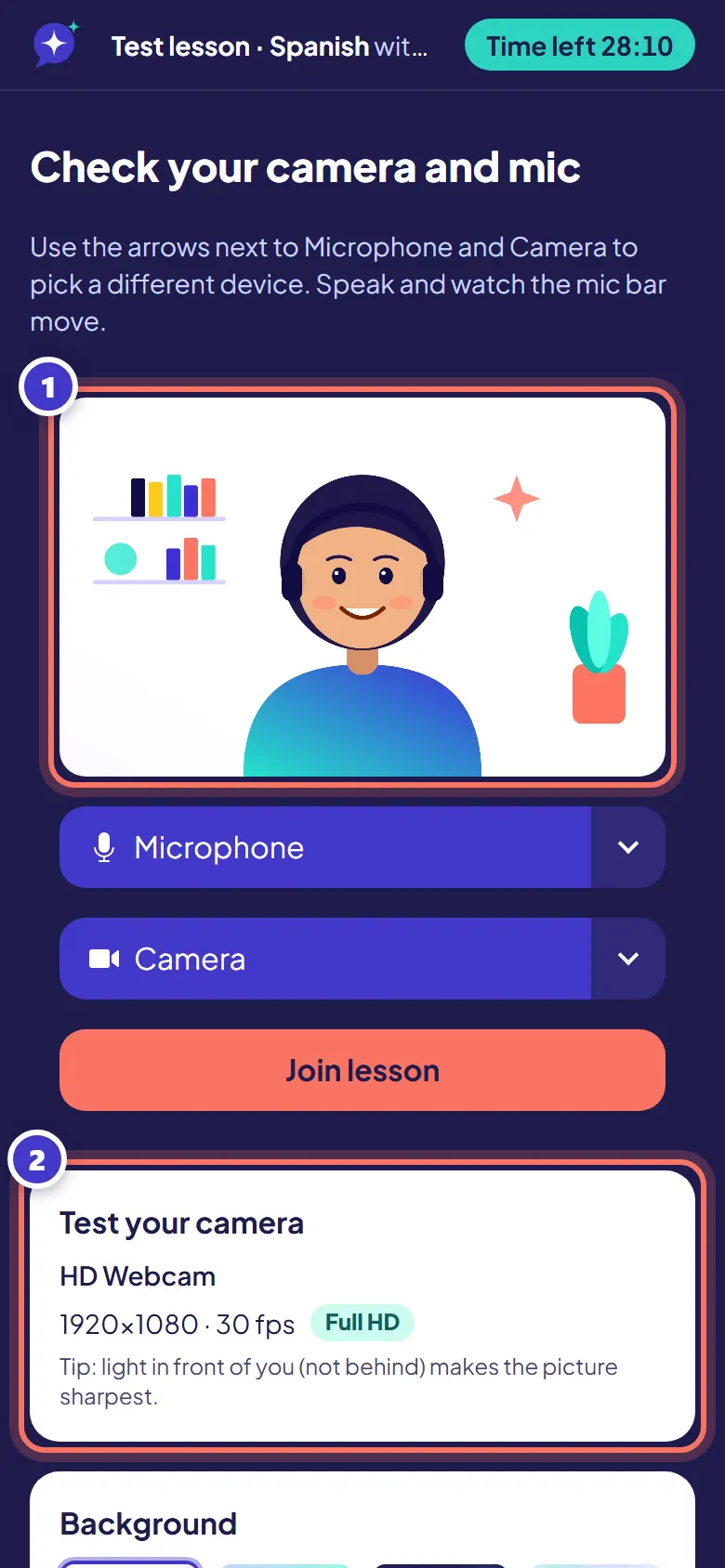
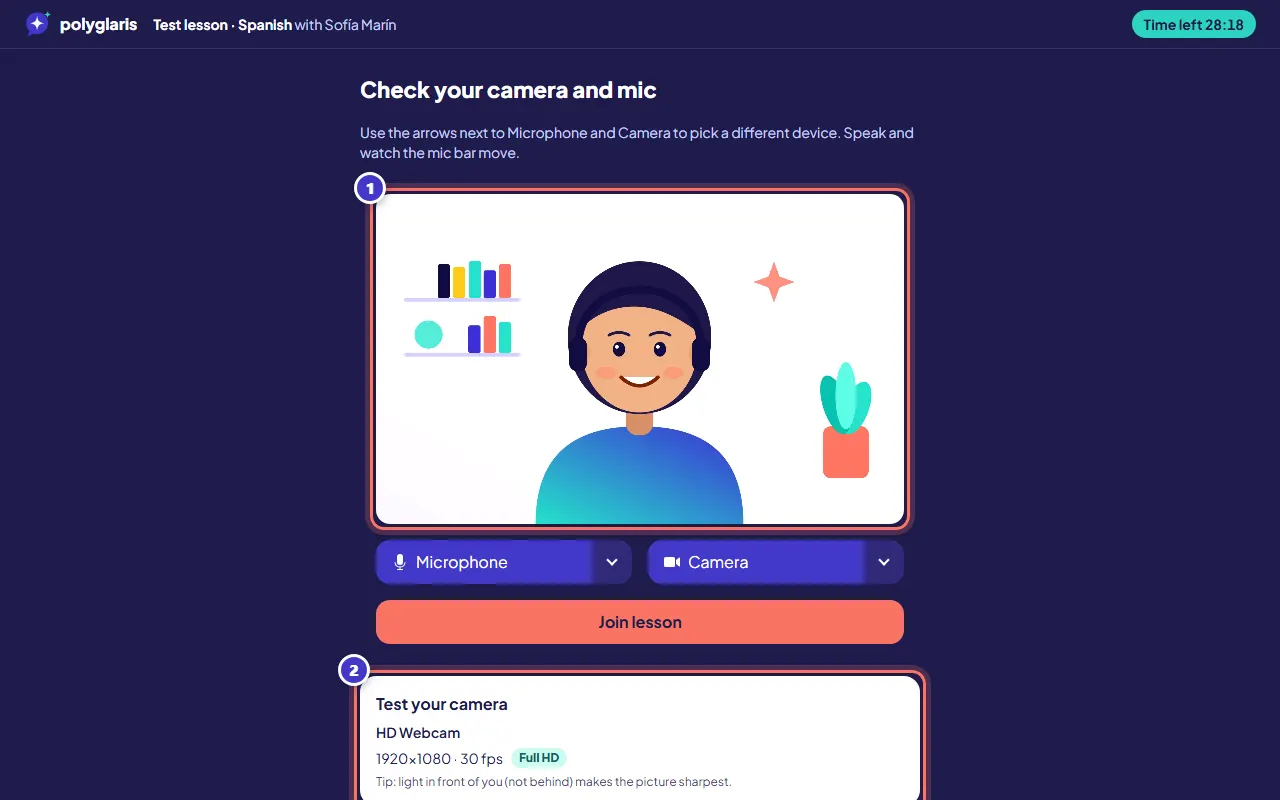
Check your camera and microphone. Speak and watch the level move. Under Test your camera you see what your camera sends, for example 1920×1080 · 30 fps with an HD label.
Use the arrows next to Microphone and Camera to pick another device, or pick a background or blur. If you see SD, try another camera or more light. You can join with your camera or microphone off and turn them on later.
- Step 4:
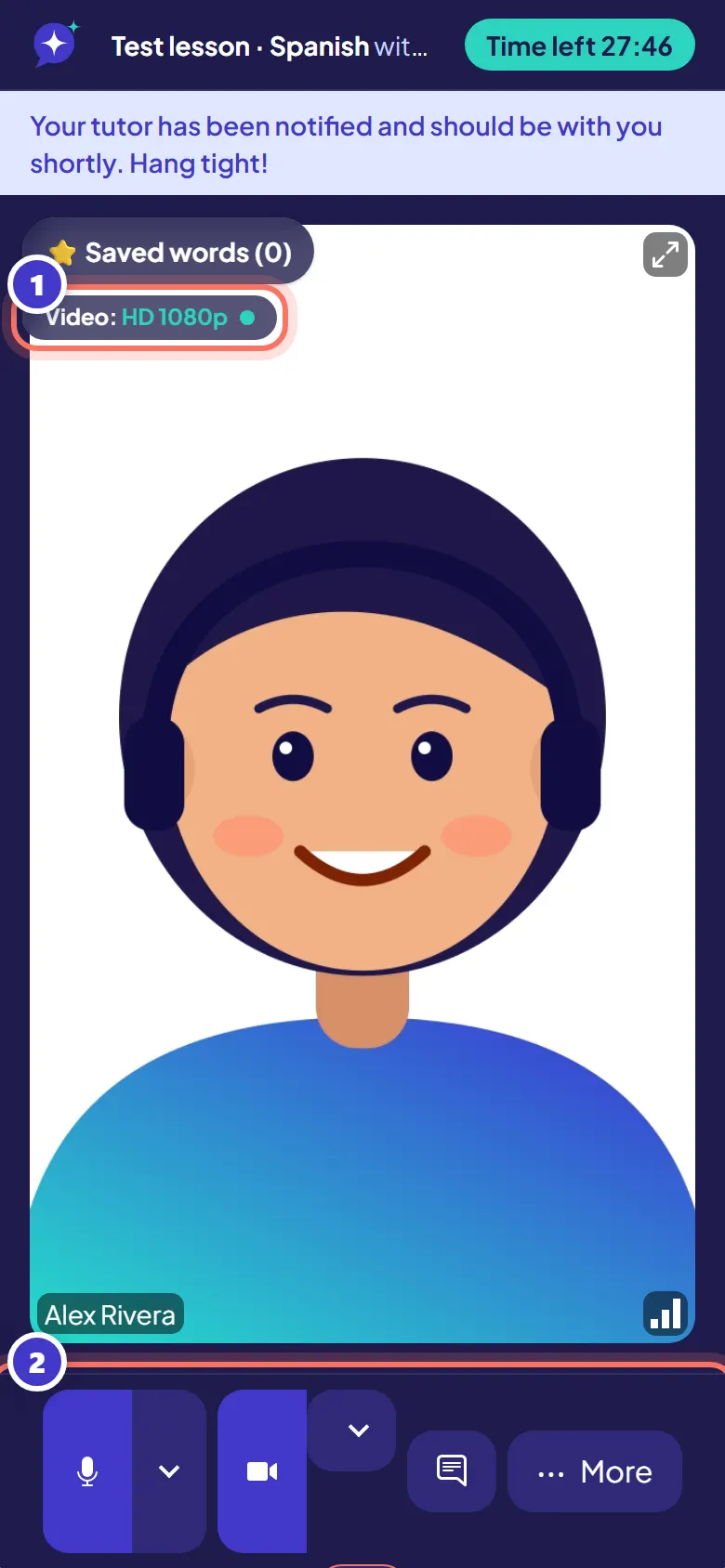
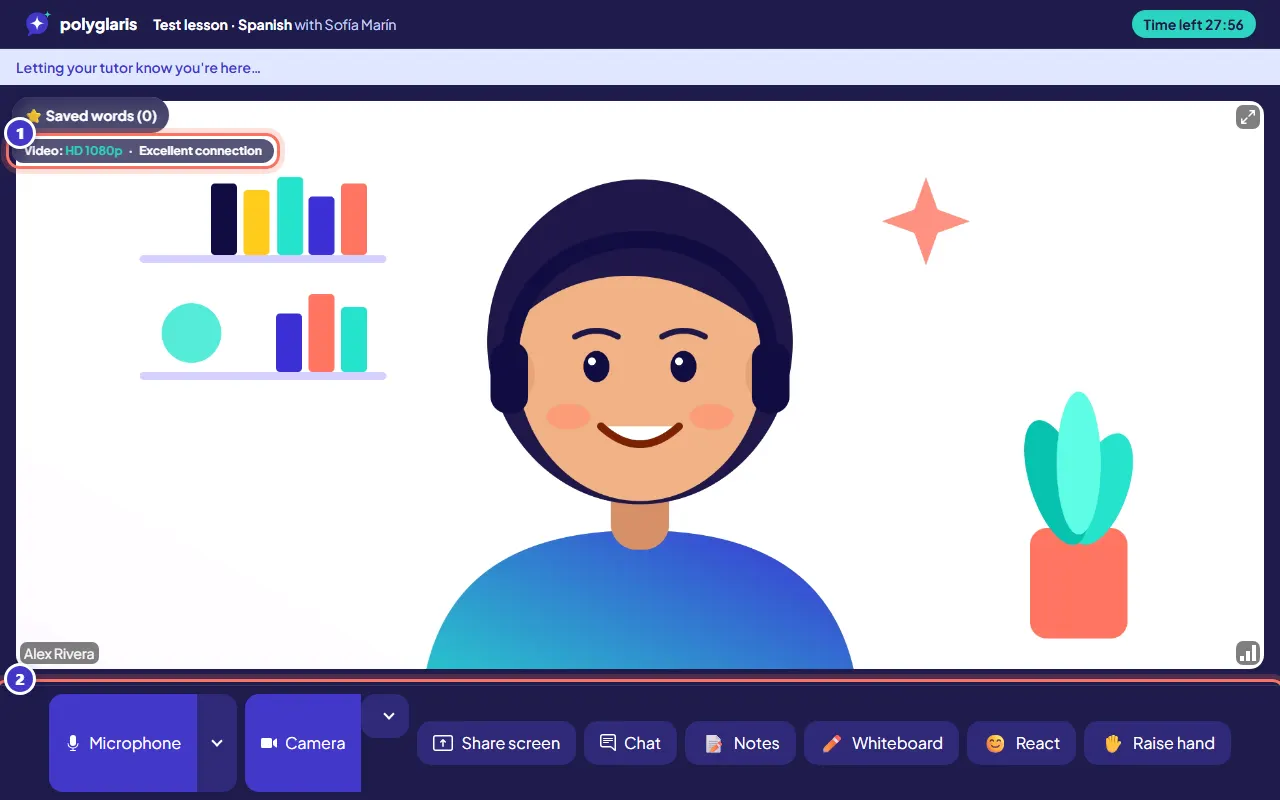
Join the lesson. Use the buttons at the bottom: microphone, camera, Chat, Notes, Whiteboard, React and Raise hand. On a phone, more tools are under More.
The Video chip at the top right shows the picture quality (for example HD 1080p) and your connection.
- Step 5:
To keep a new word, select it in the chat or the notes and press ⭐ Save word. It goes to your saved words and flashcards.
- Step 6:
In English, Spanish, French, German, Italian and Portuguese lessons, press 💬 Captions to show live captions of what you both say.
- Step 7:
When the lesson ends, press Leave. Rate the lesson with one tap, and book the same time next week if you like.
What you should see
- A countdown of the lesson time at the top.
- The Video chip on the video: HD 1080p and your connection (for example Excellent connection).
- After leaving: "How was your lesson with …?" and "Book same time next week?"
- Later: your notes, saved words and whiteboard on your dashboard, and a lesson summary email once your tutor shares the notes.
Troubleshooting
"Your browser is blocking the camera and microphone."
Click the camera or lock icon at the left end of the address bar, set Camera and Microphone to Allow, then reload the page.
"Your camera or microphone is busy."
Another app (like Zoom, Teams or another browser tab) may be using it. Close that app and reload the page.
"Your connection is weak."
Press Low-bandwidth mode (lower video quality) or Audio only. Chat, notes and the whiteboard keep working.
My tutor isn't there yet.
Stay in the classroom: your tutor is notified straight away. If they haven't joined 15 minutes after the start, you get a full refund automatically.
I got disconnected.
The classroom reconnects by itself. If it can't, press Rejoin.
Related lessons
Book and pay for a lessonUse Polyglaris TranslateChecked against the app on October 28, 2026
Still stuck?
Ask the Assistant or send us a message. A person reads every message.