Getting started · 3 นาที
Create your account and log in
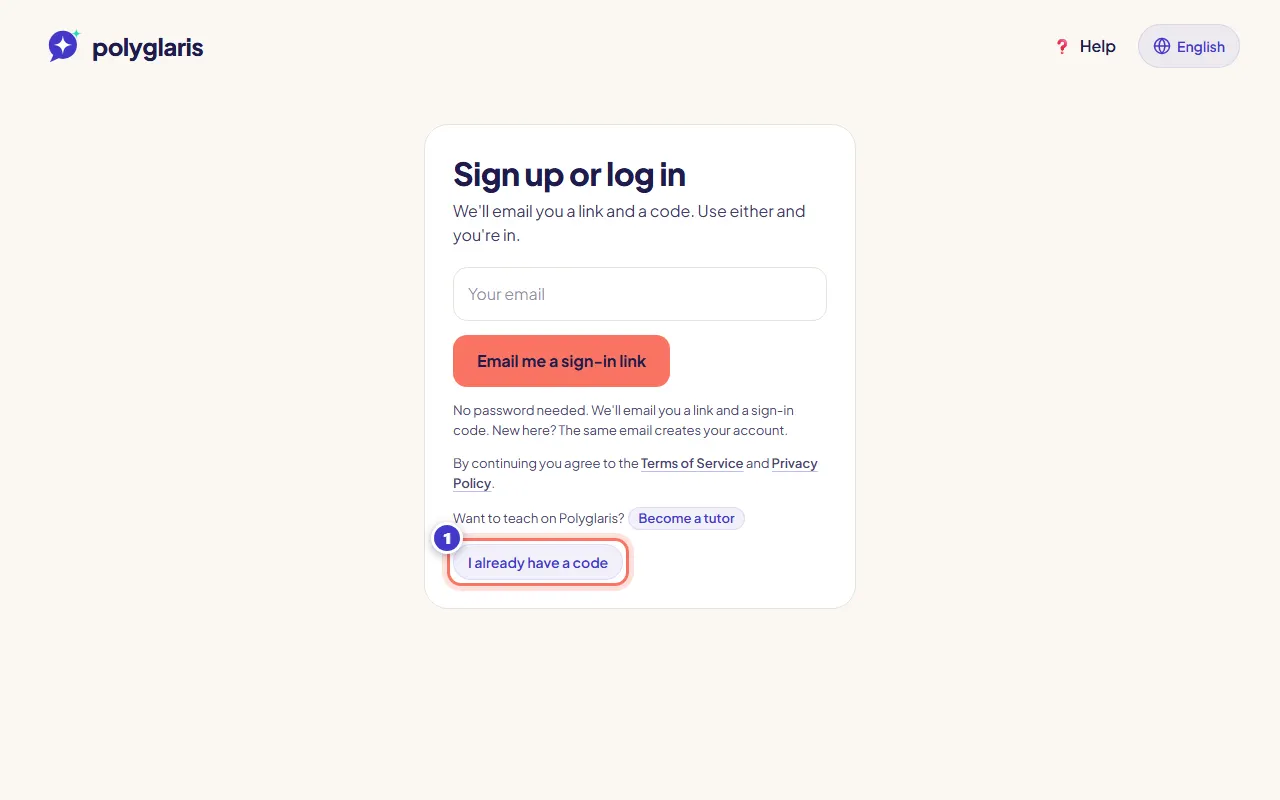
Sign up with just your email. There is no password: we email you a link and a code, and either one signs you in.
บทเรียนนี้ยังไม่ได้แปลเป็นภาษาของคุณ จึงแสดงเป็นภาษาอังกฤษ
ก่อนเริ่มต้น
- Have your email inbox open on this device or on your phone.
- You don't need a password. The same steps create a new account or log in to an existing one.
ทีละขั้นตอน
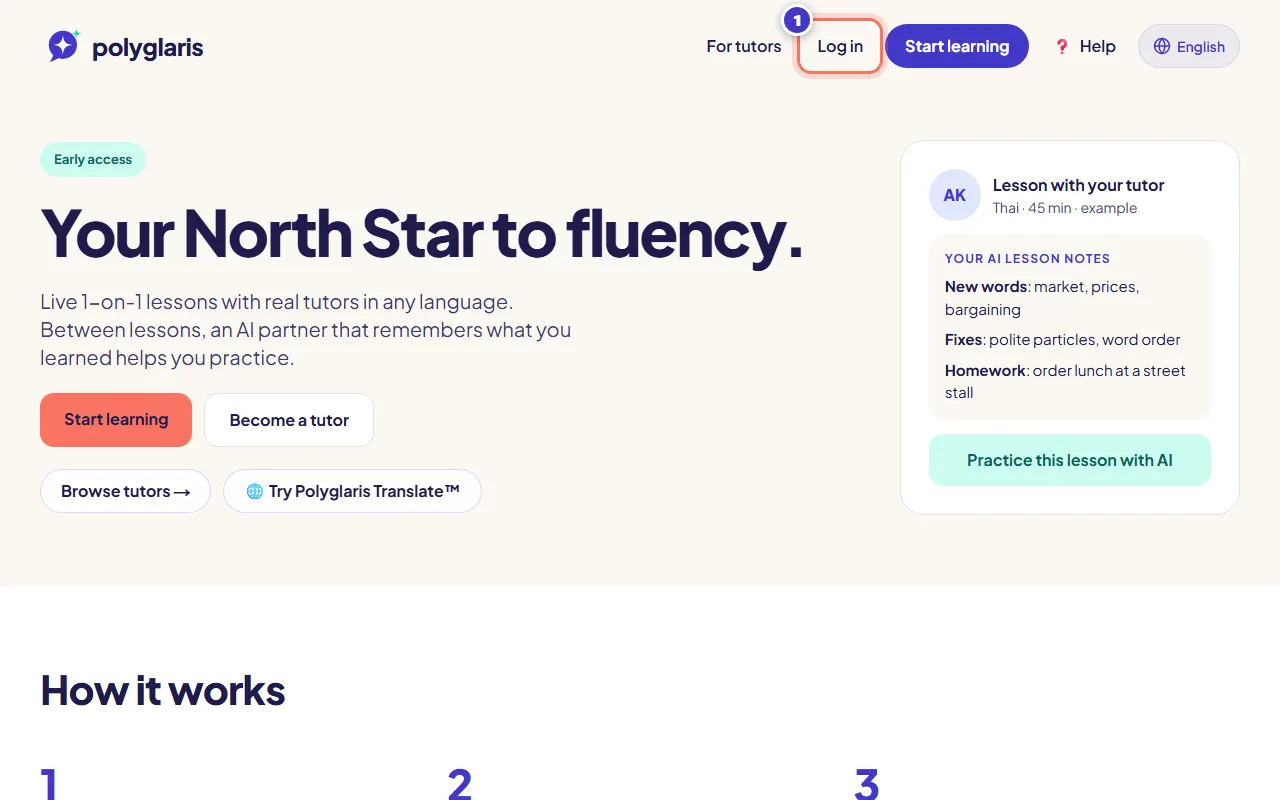
- ขั้นตอนที่ 1:
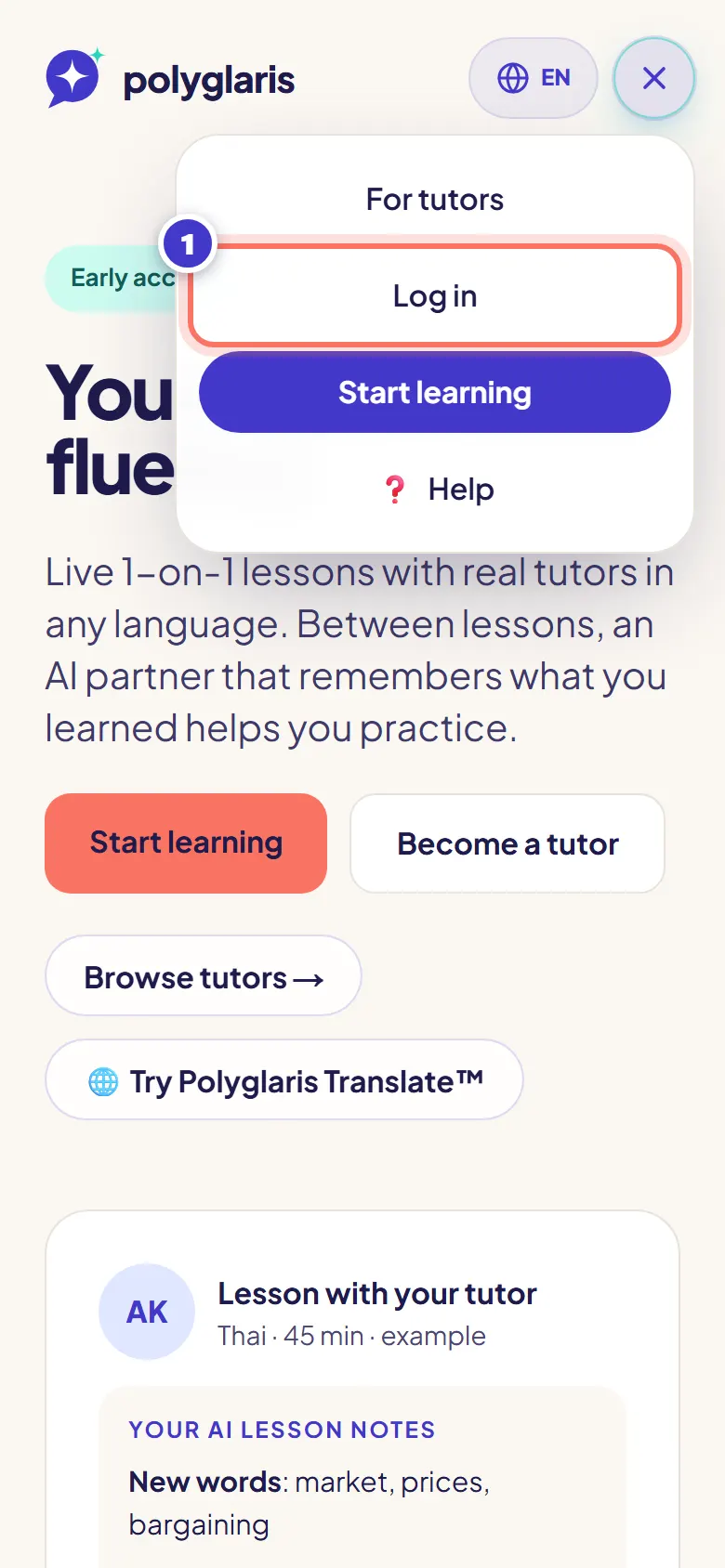
Press Log in at the top of any page.
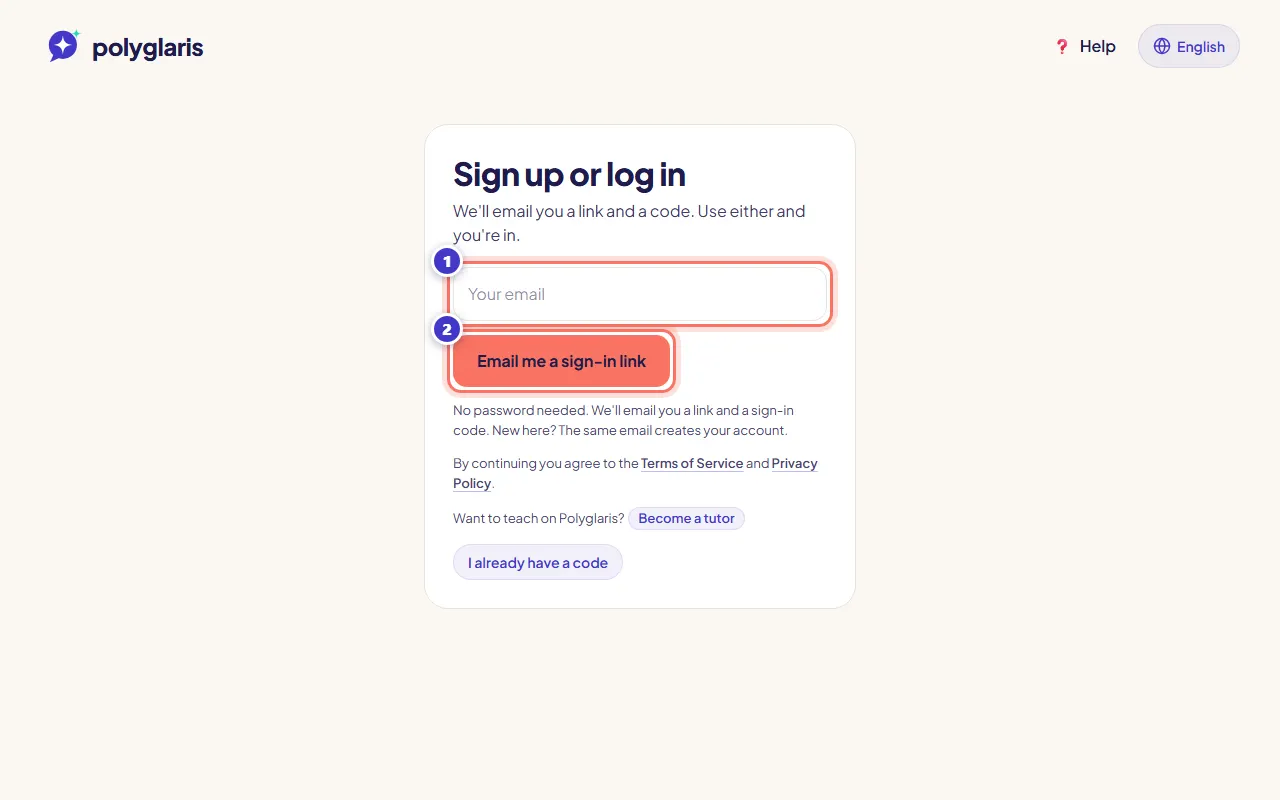
- ขั้นตอนที่ 2:
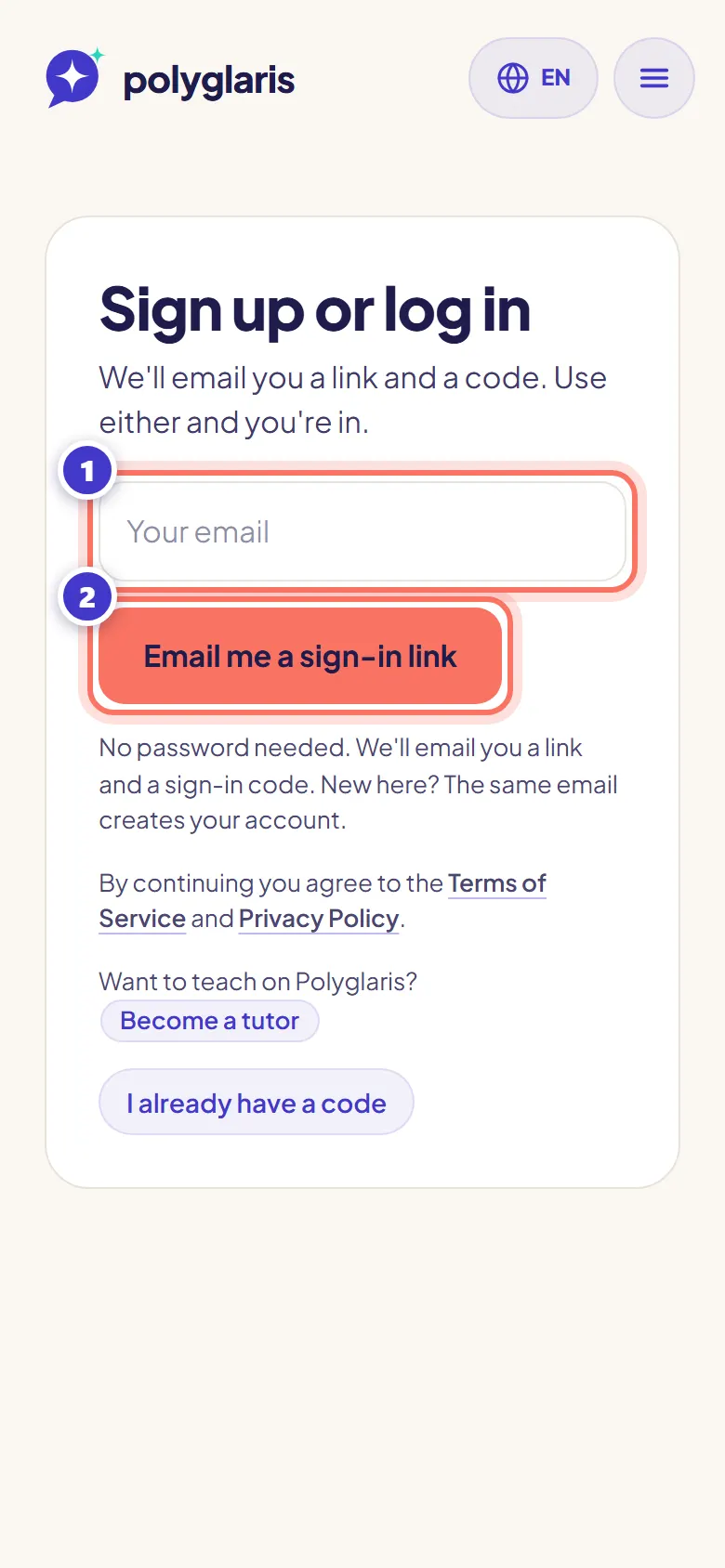
Type your email in Email address, then press Email me a sign-in link.
New here? The same email creates your learner account. Already signed up? You log in to your account as it is.
- ขั้นตอนที่ 3:
Open the email from Polyglaris (login@polyglaris.com), subject "Your Polyglaris sign-in code". It has a sign-in link and a sign-in code.
- ขั้นตอนที่ 4:
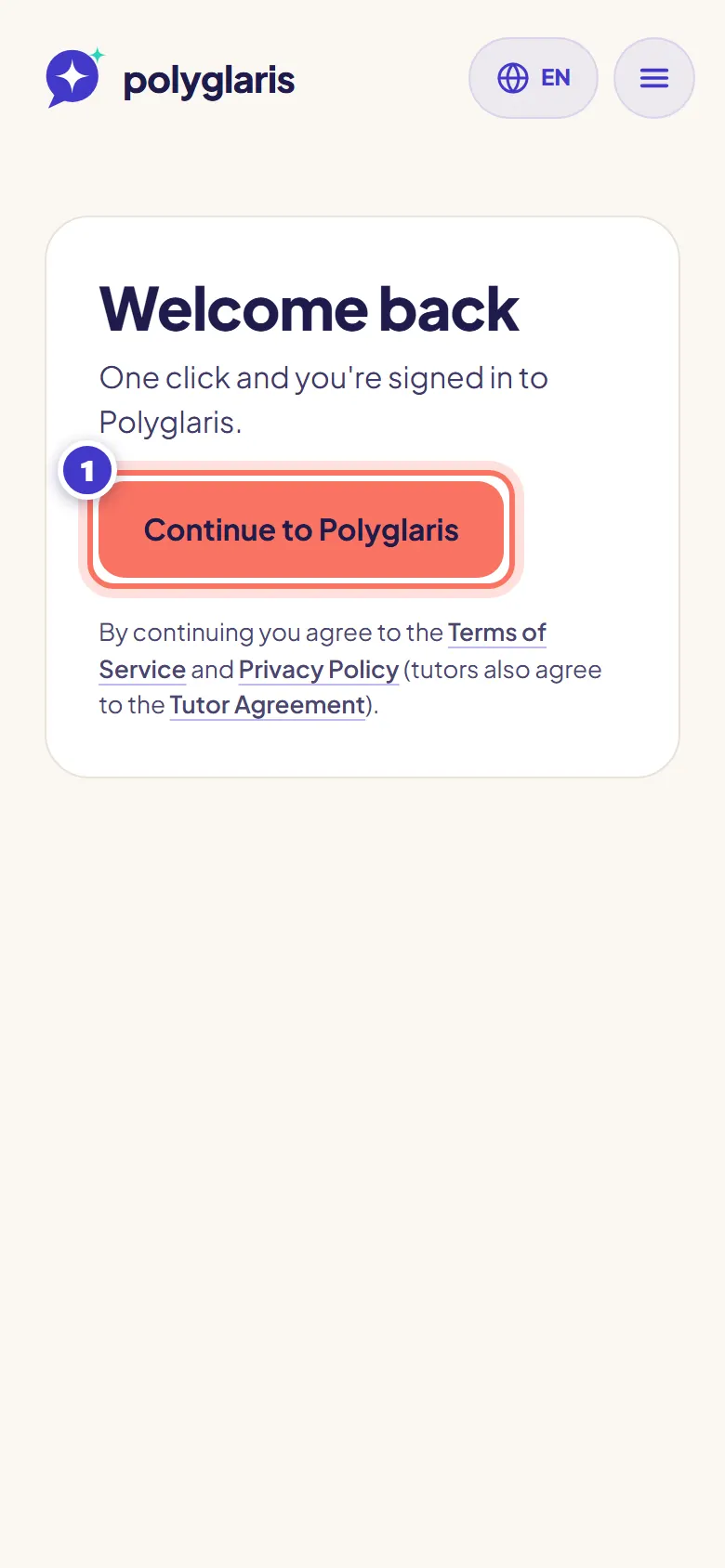
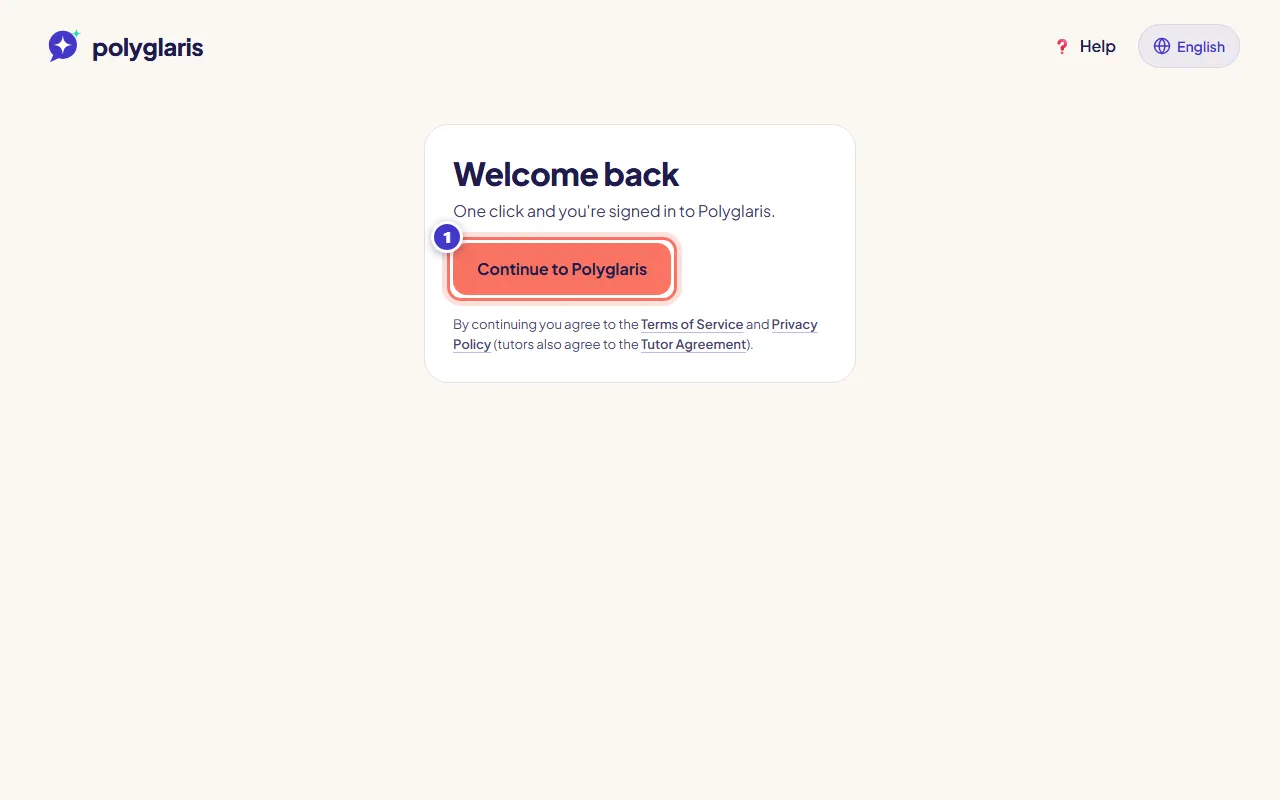
Click the link in the email, then press Continue to Polyglaris.
The extra button stops email security scanners from using up your link before you click it.
- ขั้นตอนที่ 5:
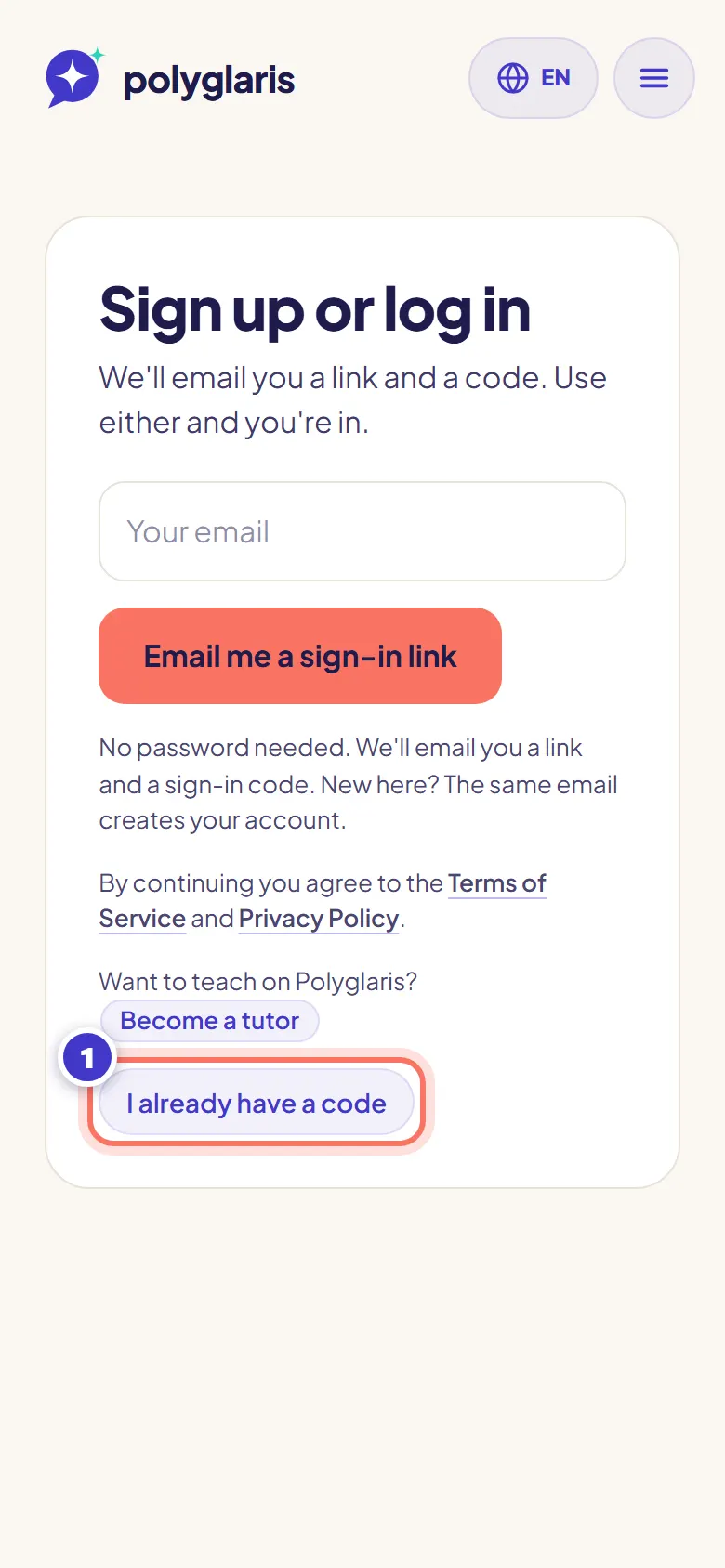
Or use the code instead: press I already have a code, then type or paste the code from the email. It signs you in by itself (or press Sign in).
The code works in any browser, so it's handy if you read your email on another device.
- ขั้นตอนที่ 6:
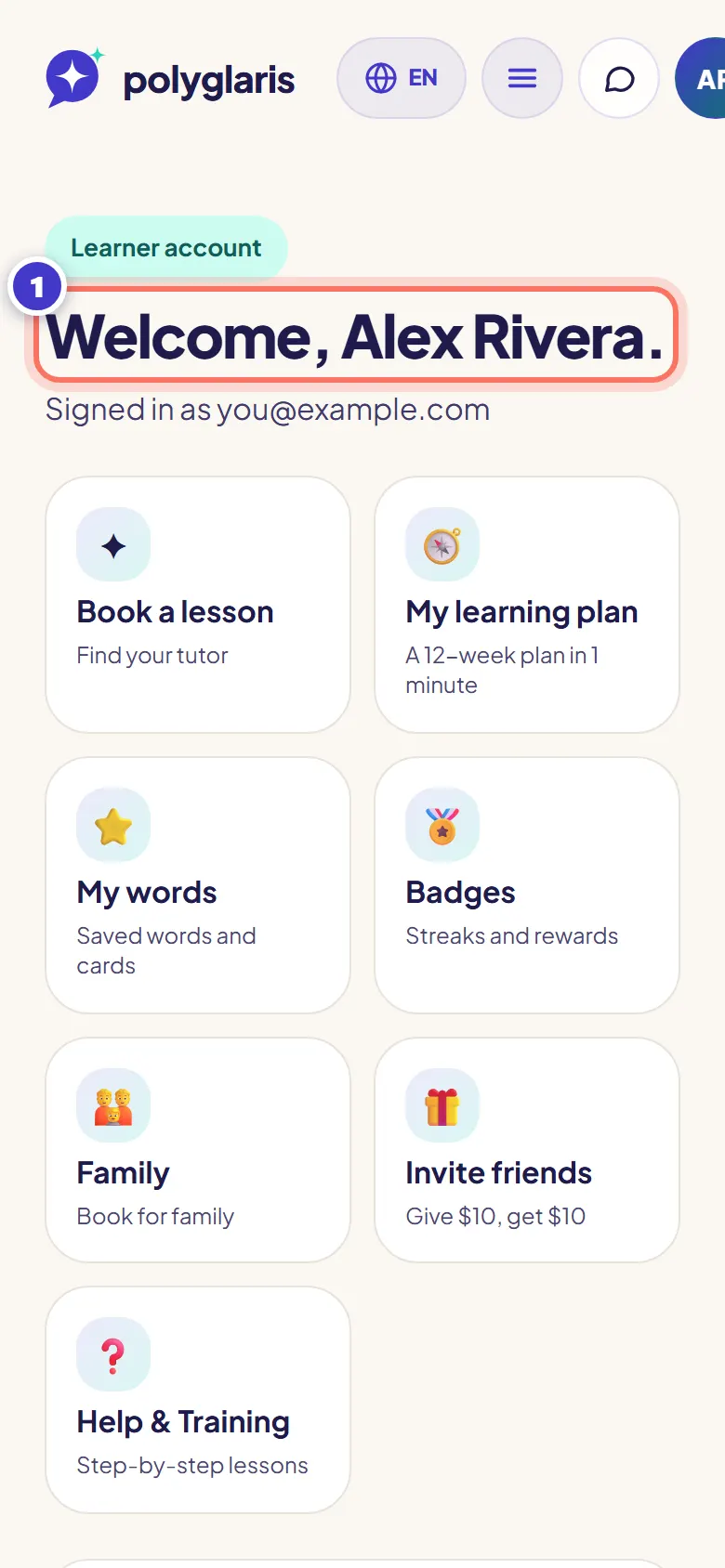
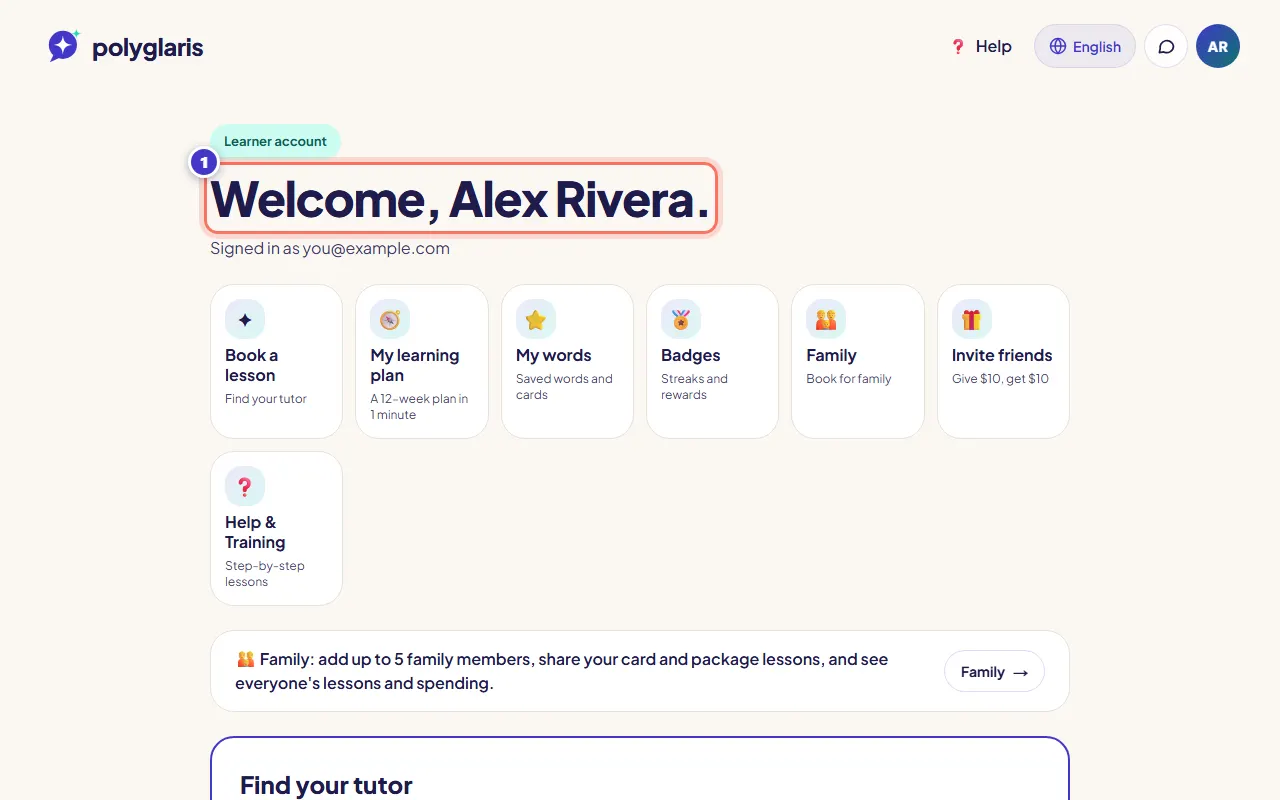
You're in. Your dashboard opens. It shows your lessons and a short list of tutors to start with.
สิ่งที่คุณควรเห็น
- After you send the email: "Check your inbox. We sent a sign-in email to …"
- After you sign in: your dashboard, with your first name at the top.
อีเมลที่คุณจะได้รับ
- Sign-in emails, each with a link and a code.
- A booking confirmation for every lesson you book, with a calendar file attached.
- Lesson reminders 24 hours before (only if you booked at least a day ahead) and 1 hour before.
- Your lesson summary after each lesson, once your tutor shares the notes: new words, corrections and homework.
- An email when a tutor messages you and you haven't read it for 10 minutes (at most one per conversation per hour).
- A weekly summary on Sunday evening with your lessons for the next 7 days.
- Emails when a lesson is cancelled, moved or refunded.
- You can turn off reminders, message emails and the weekly summary on your dashboard under Email and assistant preferences. Booking confirmations and lesson changes always send.
การแก้ไขปัญหา
The email didn't arrive.
Wait a minute and check your spam or promotions folder. Make sure the email address is spelled right. If you asked for many emails, you may see "Too many sign-in emails were sent": wait a few minutes and try again.
The link says it has expired or was already used.
Use the sign-in code from the same email instead (press I already have a code), or ask for a new email.
The code doesn't work.
Use the code from the newest email; older codes stop working. If you see "Too many attempts", wait a few minutes.
I opened the link on a different device.
That's fine: press Continue to Polyglaris on that device. Or type the code on the device where you want to be signed in.
I signed up as a tutor by mistake.
Open your dashboard and switch to a learner account from the account menu. Nothing is deleted, and you can switch back any time.
บทเรียนที่เกี่ยวข้อง
Find the right tutorBook and pay for a lessonตรวจสอบกับแอปเมื่อ 28 ตุลาคม 2569
ยังติดขัดอยู่ไหม?
ถามผู้ช่วย AI หรือส่งข้อความถึงเรา มีคนจริงอ่านทุกข้อความ